
From the main Projects List, a user can take different actions on their Projects by clicking the three stacked dots found next to all Project names
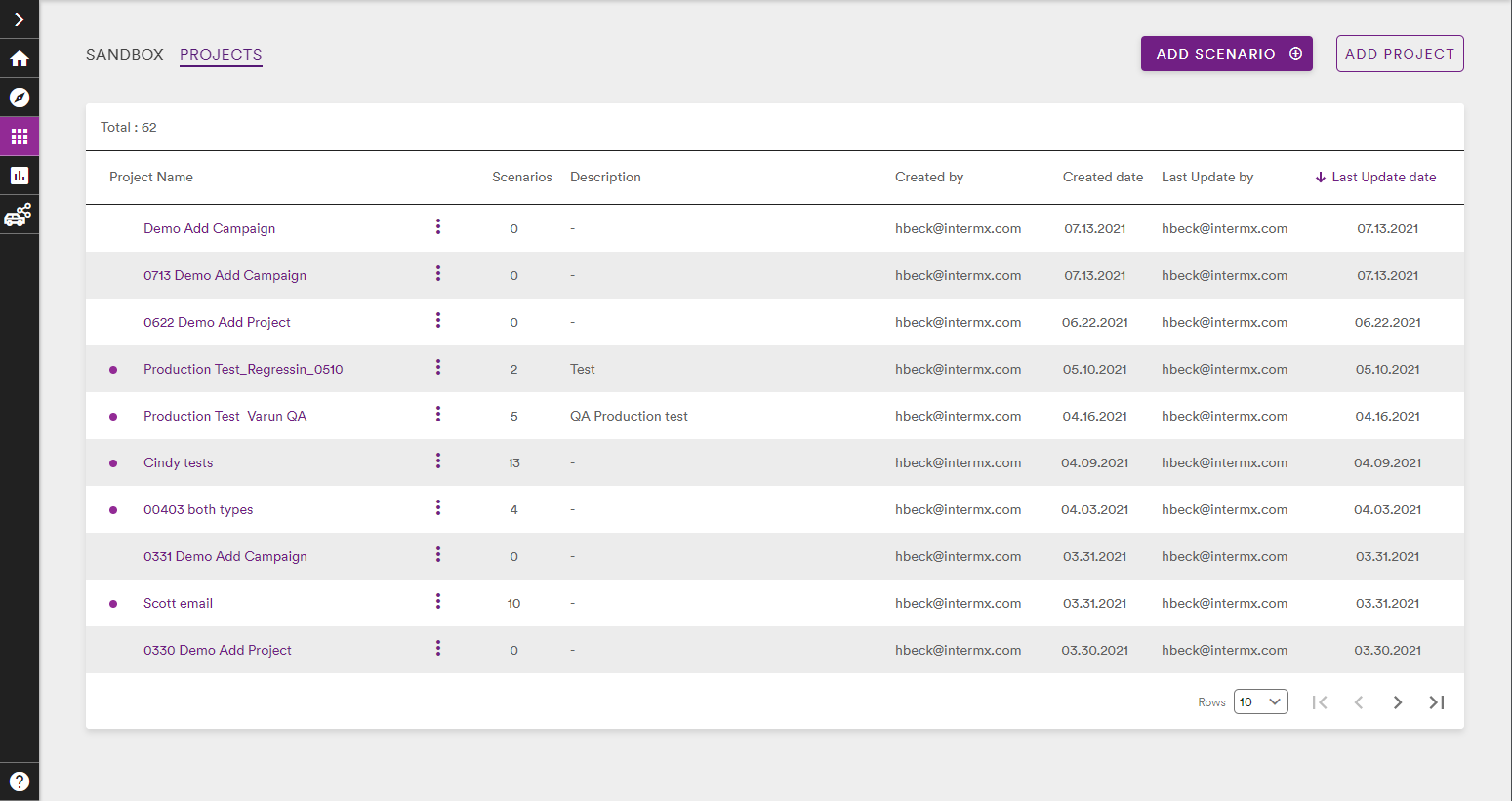
This dropdown gives the user the options to either Duplicate or Delete the Project

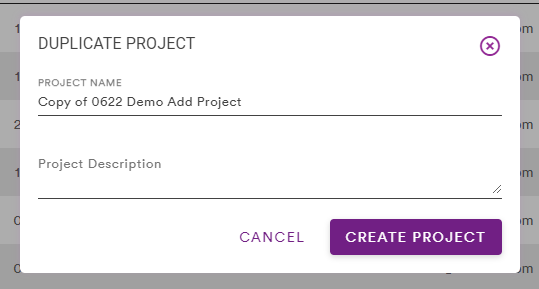
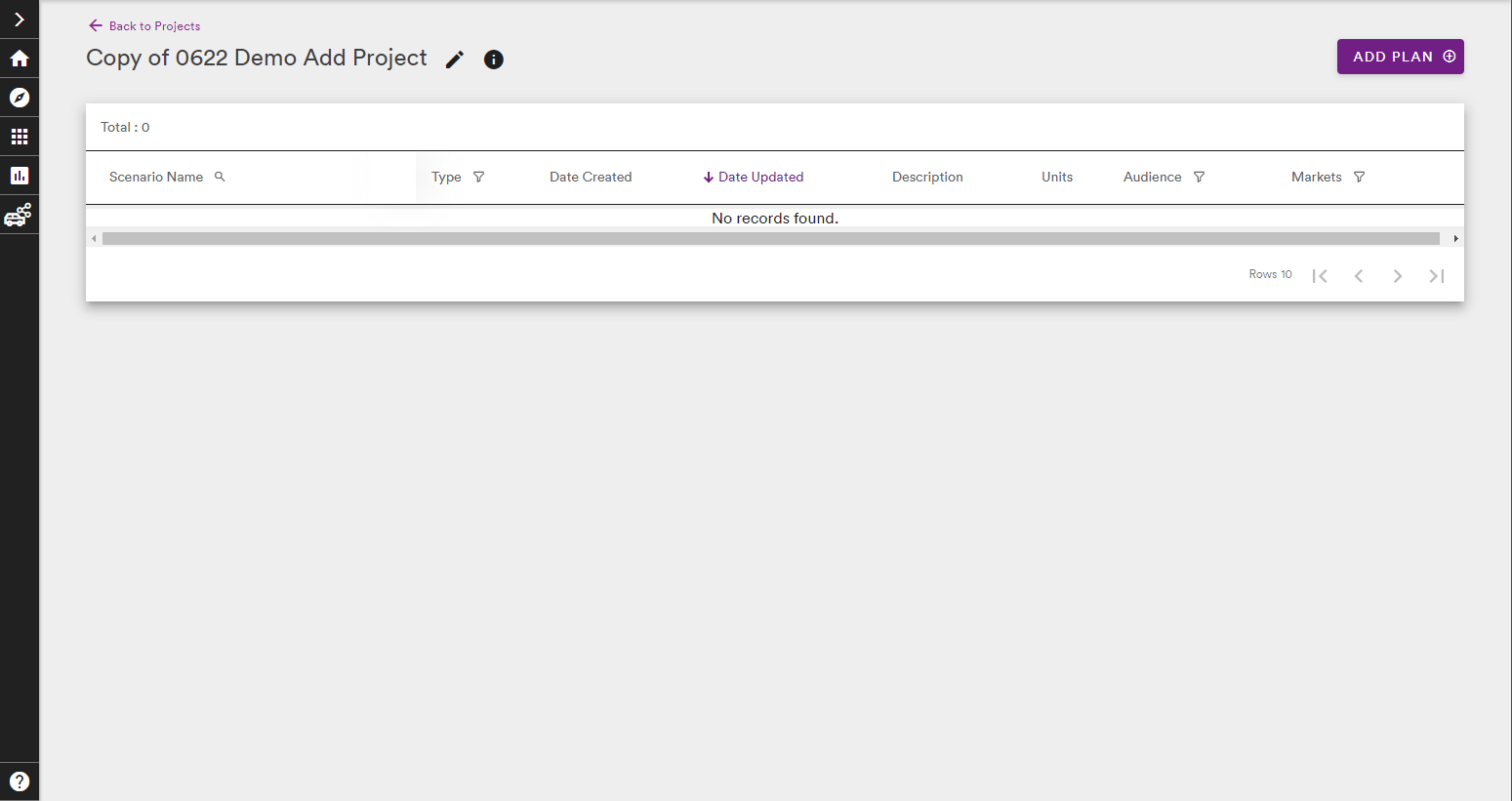
If the user selects, Duplicate, the Duplicate Project menu appears to rename this new Project. The description is optional and selecting Create Project takes the user to the new Project page where new Plans can be created within this Project
Selecting Delete from the Action dropdown brings up a Deletion Confirmation window warning the user that deleting a Project cannot be undone

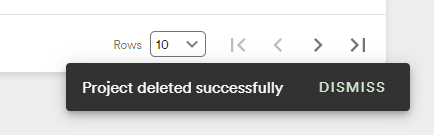
If the user selects Confirm, they will see a confirmation message at the bottom of the screen and the Project will disappear from the Projects List
These Duplicate and Delete steps also apply to Duplicating and Deleting Scenarios from a selected Project List page
Comments
0 comments
Please sign in to leave a comment.